Tinkerwell 5's MCP Server: Let Your AI Agent Actually Run the PHP
Tinkerwell 5 ships a built-in MCP server that lets Claude, Cursor, and others execute PHP inside your real project context.
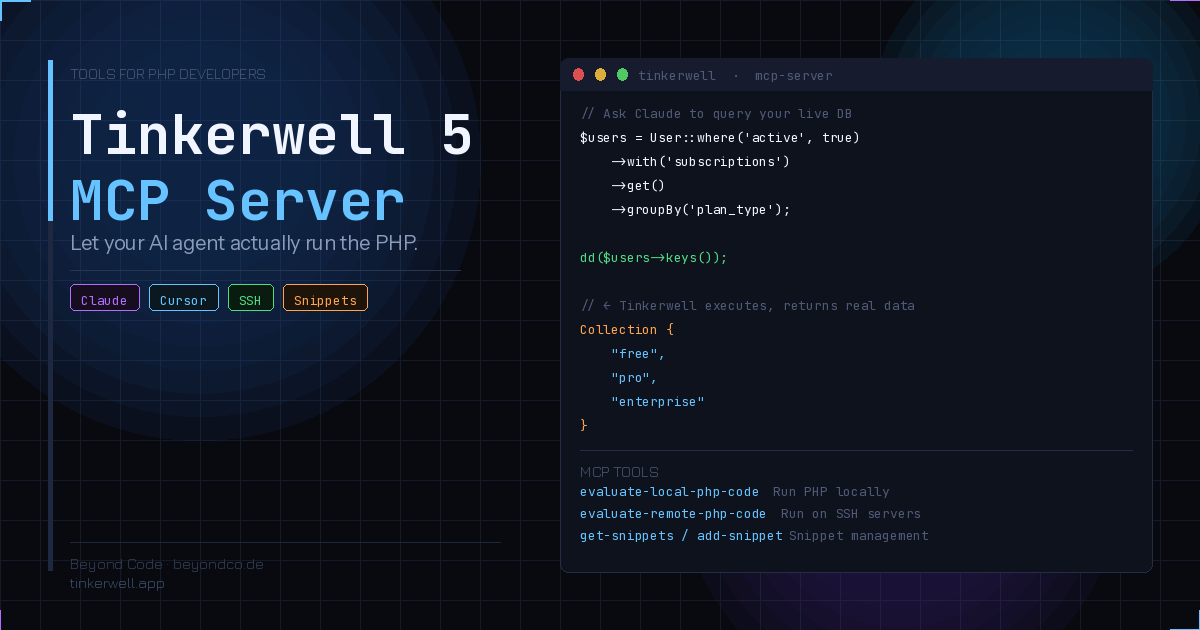
If you have been using Claude Code, Cursor, or any other AI coding agent alongside PHP development, you have run into the same limitation sooner or later: the agent can read your code and suggest changes, but it cannot actually run the code to verify its own reasoning. It is writing PHP without ever pressing execute. Tinkerwell 5 addresses this directly with a built-in MCP server that gives external AI agents the ability to run PHP inside your actual project context — with full access to your models, services, and framework.
This is a meaningful shift for AI-assisted PHP development, and it is worth understanding what it actually enables.
What Tinkerwell Is, Briefly
Tinkerwell is a PHP REPL and code runner from Beyond Code — the same folks behind Ray, Expose, and a number of other developer tools in the Laravel ecosystem. The core idea is simple: you point Tinkerwell at a PHP project (local, SSH, Docker, Kubernetes, Vapor, or Laravel Cloud), and it gives you an interactive environment where you can run PHP code in that project’s full context. Eloquent queries work. Service container bindings resolve. Your application’s logic executes as it would in a real request.
For Laravel developers especially, Tinkerwell became a standard part of the toolkit because it does what php artisan tinker does but with a more capable interface, SSH support, and a much better output display.
Tinkerwell 5 ships that same foundation with a significant new layer: Tinkerwell Intelligence, which includes AI code completion, a conversational chat sidebar, and the MCP server integration.
The MCP Server in Practice
The Model Context Protocol server built into Tinkerwell 5 exposes five tools to any connected AI agent:
| Tool | Purpose |
|---|---|
evaluate-local-php-code | Run PHP in a local project context |
evaluate-remote-php-code | Run PHP on an SSH-connected remote server |
get-remote-connections | List available SSH connections |
get-snippets | Access your saved Tinkerwell snippets |
add-snippet | Create new snippets from agent-generated code |
When you connect Claude Code to Tinkerwell’s MCP server, the agent can use any of these tools during a session. The practical effect is that instead of Claude generating PHP and asking you to run it manually, Claude can evaluate the code itself and see the actual output.
Here is a concrete example. Suppose you ask Claude Code to investigate why a query is returning unexpected results:
// Claude can ask Tinkerwell to run this and return the actual output
$results = User::where('active', true)
    ->with('subscriptions')
    ->get()
    ->groupBy('plan_type');

dd($results->keys());
Rather than guessing at the output based on your schema and model definitions, Claude gets real data back from your database. It can iterate — adjusting the query, checking the results, and continuing from there — without you manually copying output back into the conversation.
Setting It Up
Configuration is intentionally simple. Open Settings → Intelligence in Tinkerwell 5, find the MCP Server section, and click Configure next to your AI tool of choice. Tinkerwell supports one-click configuration for Claude Desktop and Cursor, and provides a JSON snippet for manual configuration with any other MCP-compatible client, including Claude Code running in the terminal.
After configuration, restart your AI tool and the Tinkerwell MCP server is available. It starts automatically when your agent calls one of the Tinkerwell tools, so there is no separate process to manage.
For Claude Code specifically, you can add the Tinkerwell MCP configuration to your project’s .claude/settings.json or your global Claude Code config. Once wired up, you can verify it is working by asking Claude to run a simple PHP snippet and checking that it comes back with real output rather than a hallucinated guess.
# Verify Claude Code sees the Tinkerwell MCP server
claude mcp list
Bring Your Own AI Key
One design decision worth noting: Tinkerwell Intelligence uses your own API key from whatever AI provider you prefer. There is no additional Tinkerwell subscription for the AI features. You configure your OpenAI, Anthropic, or other provider key in Settings, and Tinkerwell uses that for code completion and the chat sidebar. The MCP server itself does not require an API key — it is exposing Tinkerwell’s execution capabilities to your external AI tools, which already have their own credentials.
This is a sensible model. It keeps the AI cost on your tab (where you can see it), avoids lock-in to a single provider, and means Tinkerwell gets access to new model releases automatically once Beyond Code adds them to the API.
Remote Execution: The Underrated Feature
The evaluate-remote-php-code tool deserves specific attention because it unlocks something that has no easy equivalent elsewhere. If you have SSH connections configured in Tinkerwell — production servers, staging environments, whatever — your AI agent can run code against those environments too.
This is powerful for debugging production issues. When something is happening in production that you cannot reproduce locally, you can ask Claude to run diagnostic queries directly against the production database, check the state of queued jobs, or inspect what a specific model instance actually looks like in the live environment.
// Run on production via Tinkerwell MCP remote execution
$failedJobs = DB::table('failed_jobs')
    ->where('failed_at', '>=', now()->subHour())
    ->count();

$recentErrors = Cache::get('error_rate_last_hour', 0);

return compact('failedJobs', 'recentErrors');
The obvious caveat is that remote execution with real production data requires careful handling. Tinkerwell only shares the code in your editor with AI services — it does not expose your SSH credentials or connection details to the agent. But you should still review any code an agent wants to run against production before letting it execute. Destructive operations happen fast.
Snippet Management From the Agent
The snippet tools — get-snippets and add-snippet — are less dramatic but genuinely useful in practice. Your Tinkerwell snippets are pieces of code you have saved for reuse: common queries, debugging helpers, data inspection patterns. When your AI agent can read them, it has context about the patterns you actually use in this project, not just what it can infer from your source code.
When the agent generates something useful during a session, add-snippet lets it save that code back to Tinkerwell with a label, where you can find it later. Over time this builds a project-specific library that gets more valuable as snippets accumulate.
The Conversational Mode and AI Code Completion
Beyond the MCP server, Tinkerwell 5 ships two other AI features. Conversational Mode adds a chat sidebar to the Tinkerwell interface itself, letting you describe what you want in plain language and have the AI generate the code snippet for you. The code is then available to run in your project immediately — no copy-paste from a separate chat window.
AI Code Completion is designed to stay out of your way: it still uses the language server for standard completions (functions, variables, class members), but adds an AI trigger for on-demand completions when you explicitly want the model to suggest what comes next. The opt-in approach avoids the annoyance of aggressive autocomplete that fires constantly during normal typing.
The Bigger Picture
What Tinkerwell 5’s MCP integration represents is a step toward AI agents that can actually close the loop in PHP development. Right now, most AI coding workflows involve the agent suggesting code, the developer running it, the developer describing the output, and the agent adjusting — a slow turn-by-turn loop. Giving the agent direct access to a PHP execution environment shortens that loop substantially.
The integration also pairs well with the PhpStorm MCP server covered in a previous post here. PhpStorm provides static analysis feedback — inspection results, type inference, structural search. Tinkerwell provides runtime execution. Together, an agent connected to both can write PHP, check it statically via PhpStorm’s analysis engine, run it against real data via Tinkerwell, and iterate from there with much less manual back-and-forth.
For PHP developers investing in AI-assisted workflows in 2026, Tinkerwell 5 is not optional infrastructure. It fills a gap that was previously a significant friction point.
Getting Started
Tinkerwell 5 is available from tinkerwell.app. If you have an existing Tinkerwell 4 license, check the renewal page for upgrade pricing. After installation, head to Settings → Intelligence to configure your AI provider key and enable the MCP server for your preferred agent.
The MCP Server documentation covers the full configuration options and available tools. The What’s New in Tinkerwell 5 page has a full overview of the Intelligence features if you want to see more before purchasing.